
How to Use a Computer Mouse with Hand Tremor
Set up your desk
- Rest your forearm on the desk or a padded armrest, so your hand isn't held up in the air while you move the mouse.
- Give the mouse plenty of room. An extra large mouse pad means you won't keep running into the edge.
Find a mouse that suits you
- Start with the mouse you already have. Any mouse, trackball, or touchpad works with SteadyMouse.
- If you can, try a few. Weight, size, wired or wireless, and optical or laser sensors all feel different. Some people like a light mouse and let software do the filtering. Others prefer a heavier mouse that absorbs some of the shake.
- Trackballs and roller mice stay put while you move the cursor, which some people find easier.
- Keep a spare mouse handy. Worn-out buttons and dying batteries can cause problems that look a lot like tremor.
Adjust the Windows mouse settings
These steps are for Windows 11. Windows 10 has the same settings under Settings > Devices > Mouse.
- Slow the cursor down. Go to Settings > Bluetooth & devices > Mouse and lower Mouse pointer speed. A slower cursor means small shakes move it less. Stay below the halfway point; above it, Windows trades away accuracy.
- Turn off Enhance pointer precision on the same page. It speeds the cursor up when your hand moves quickly, which makes shaky movement jumpier. SteadyMouse turns it off for you.
- Make double-clicking easier. On the same page, open Additional mouse settings, choose the Buttons tab, and move the Double-click speed slider toward Slow.
- Let the cursor jump to buttons. In Additional mouse settings, on the Pointer Options tab, turn on Snap To. The cursor then moves to the default button in dialog boxes by itself.
- Use your steadier hand. If tremor is worse in one hand, use the mouse with the other. Swap the buttons with Primary mouse button on the Mouse settings page.
Make the cursor easy to see
- Go to Settings > Accessibility > Mouse pointer and touch to choose a larger cursor or a high-contrast color.
- In Additional mouse settings, on the Pointer Options tab, turn on Show location of pointer when I press the CTRL key.
Filter out the shaking with SteadyMouse
Windows settings help, but they can't tell shaking apart from the movement you meant. SteadyMouse can. It removes the shaking before it reaches your cursor, blocks accidental clicks, and can snap the cursor onto the icon you are aiming for. You keep using the mouse you already have.
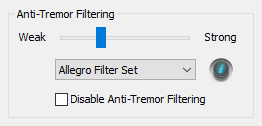
- Start with a slow mouse speed and a strong filter, around 95%. The cursor will feel slow but smooth.
- Try the Feather, Allegro, Adagio, and Classic filter sets, and keep the snappiest one that still removes all of the shaking.
- Ease the filter strength down until tremor starts coming through, then raise it slightly.
- Press Num Lock to turn SteadyMouse on or off at any time.
The filter tuning section of the manual has the full walkthrough. See SteadyMouse in action on the home page, or see features and pricing. Every purchase includes a 70-day money-back guarantee.
When the mouse is too hard to use
- Mouse Keys move the cursor with the number keypad. Press the Windows key + U, choose Mouse, and turn on Mouse keys. The keys around 5 move the cursor, and 5 clicks.
- Keyboard shortcuts avoid the mouse entirely: Tab and the arrow keys move between buttons and links, and Enter selects.
- Voice access lets you control Windows 11 by speaking. Turn it on under Settings > Accessibility > Speech.
- Voice typing types what you say. Press the Windows key + H.
Questions? Email support@steadymouse.com. More help: stopping accidental clicks and helping a parent.